Sooner or later you hit the same wall: there is a video you want to keep, and the site it lives on has no save button. Maybe it is a tutorial you keep re-watching, a clip you want in a project, or something you suspect will not be online next month.
SnapAny solves that in three different shapes — a web app, a browser extension, and a desktop client. People often assume these are just three doors to the same room. They are not. Each one is built around a different way of working, and picking the right one saves you a lot of small annoyances.
Here is the short version, then the details.
The thirty-second answer
- You want to grab one video, right now, without installing anything → the web app
- You save videos while browsing, several times a week → the browser extension
- You download in bulk, or you care about the highest quality available → the desktop app
If that already settled it, go ahead. If you want to know what you would be giving up, read on.
The three, briefly
SnapAny Web — nothing to install
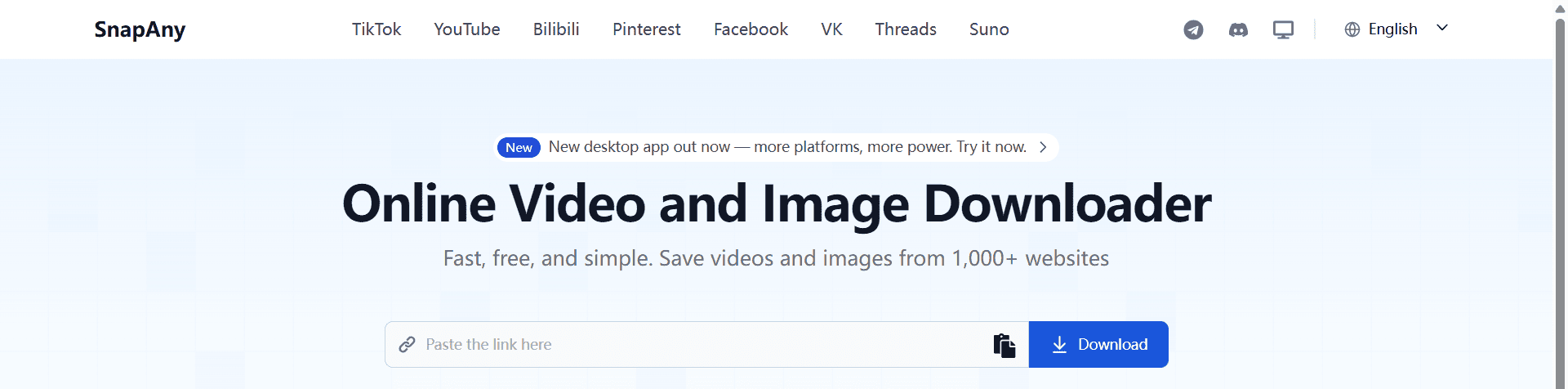
Open SnapAny, paste a link, download. That is the whole workflow. It runs in any browser, on any device — including your phone and tablet, which is exactly where "install a program first" tends to fall apart.
This is the one to use when downloading is not a habit, just something you need to do today.
SnapAny Extension — it notices the video for you
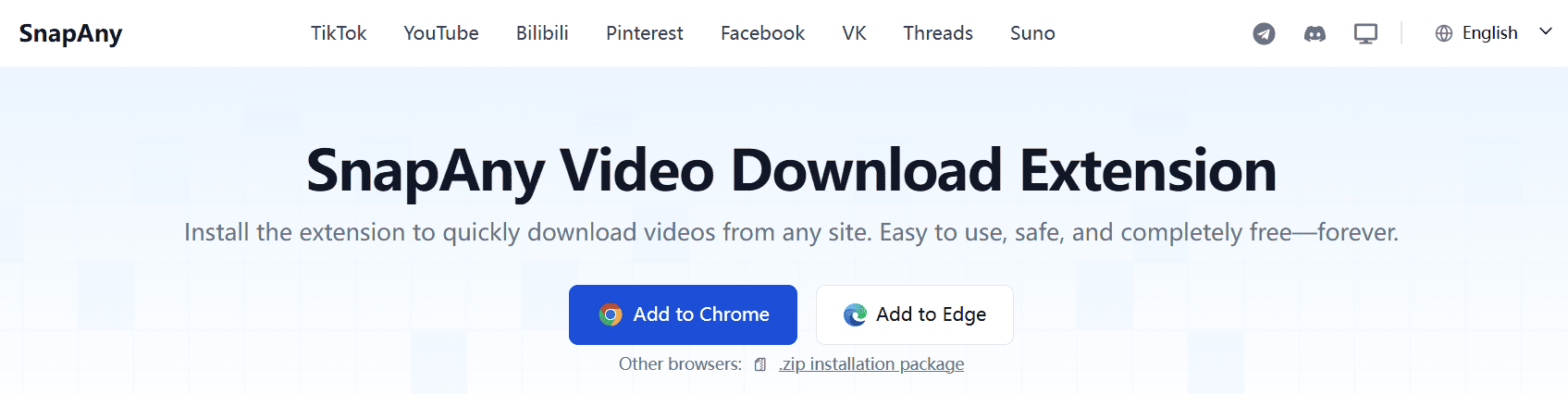
The extension sits in your toolbar and spots downloadable media on the page you are already looking at. No copying links, no switching tabs — you see something worth keeping, you click the icon, you pick a quality.
That difference sounds small until you do it twenty times. If you are the kind of person who saves things while browsing rather than in a planned session, this is the version that will feel like it disappears into your workflow.
SnapAny Desktop — the one that scales
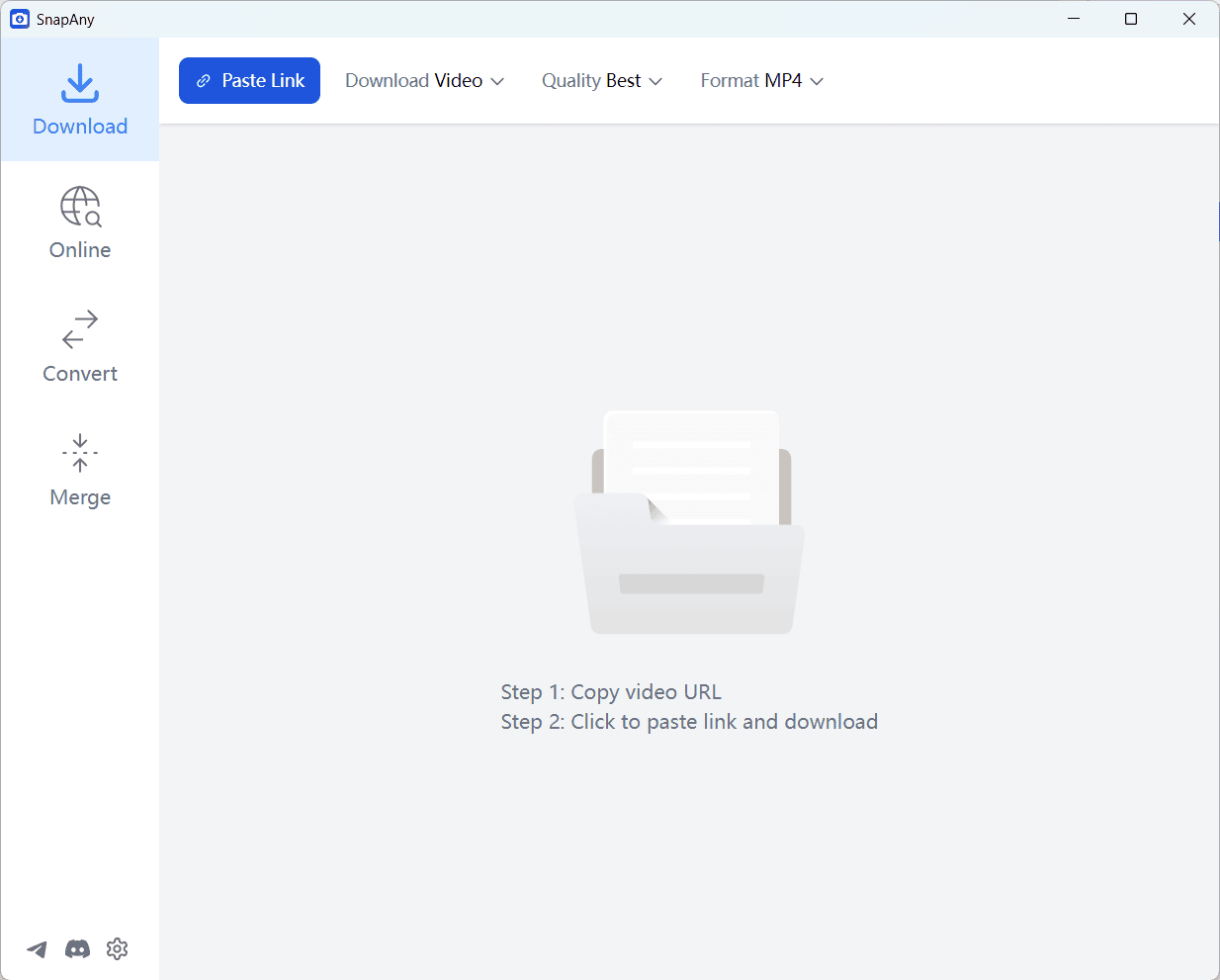
The desktop app is the heavy-duty option. Queue up a whole batch, scan an entire profile page at once, keep the original quality instead of a re-encode, pull the audio track out on its own. Files are written straight to your machine.
This is the version for people who download as part of a job — editors, researchers, anyone building an archive.
Side by side
| Web | Extension | Desktop | |
|---|---|---|---|
| Setup | none | add to browser | install app |
| How you start | paste a link | click the toolbar icon | paste, scan, or import a list |
| Works on phones | yes | no | no |
| Batch downloads | one at a time | one at a time | full queue, runs in parallel |
| Quality | up to HD | up to HD | original quality, 4K, separate audio track |
| Runs on | any browser | Chrome and other Chromium browsers | Windows and macOS |
| Best for | occasional saves | saving while you browse | bulk work and archives |
Which one is you?
Use the web app if you do not want to install anything, you are on a phone or tablet, or this is a one-off. Zero learning curve — the interface is a single input box.
Use the extension if you find yourself saving videos regularly and the copy-link-switch-tab-paste loop has started to grate. It is the version that removes steps rather than adding features.
Use the desktop app if you download for work, you need whole batches at once, or "good enough quality" is not good enough.
One last thing
These are not mutually exclusive, and most regular users end up with two: the extension for everyday saves, the desktop app for the occasional big job. The web app is always there as the fallback — on a borrowed computer, on your phone, anywhere you cannot install software.
Pick whichever matches what you are doing today. You can always add another later.